Advertise Here

Support our Sponsors

Showing posts with label Tricks. Show all posts

Friday, December 12, 2014

How To Crash Your Friend’s WhatsApp Messenger Remotely

Usage of Whats app is quite common these days and it takes only few bytes. Whatsapp is really a good messenger.

Check The Whatsapp Message in video description and It Can easily Crash Your Friend's WhatsApp Remotely

Check video https://www.youtube.com/watch?v=25HPGmAK6UQ

Tuesday, November 24, 2009

Free SMS to any International number [Working]

Cellular UpdateIf you are searching for a service to let you send free text messages (SMS) on any international number you will find many but unfortunately they all want you to sign-up and once you do, you are asked to subscribe for some paid plans.

I have found a service which is simply yet free but will also let you send SMS to any number internationally without any need of sign-up or get charged with any service.

Free Text Message Globally

KuripoTxt is online free tool which serves its purpose for which it is designed for. Simply visit the site and enter the number you wish to send any text, followed by your text. Text input limit is standard 160 characters.
Enjoy the service for no cost !

n do remember me in ur prayers buddy

Tuesday, October 13, 2009

Turn Your Home Computer into a Web Server in 2 Minutes

You may find this technique useful even if you are not a very tech-savvy user.

web server at home computerBefore getting into the actual process, let’s look at a couple of real-world situations that explain why you may want to turn your home computer into a web server.

Situation #1. Say you have music MP3s, documents and other important files on the hard drive of your home computer. If you turn this home computer into a web server, you will be able to access all these files from office or any other Internet connected machine including your mobile phone.

Situation #2. You have some personal photographs that you want to share with other family members. You can either upload these pictures online to a site like Flickr or better still, just convert the computer into a web server. Now you can connect the camera to the computer, transfer the digital pictures to some designated folder and they’ll instantly become available to your friends and family anywhere in the world.

Situation #3. You want to host a website on the internet but the web hosting jargon like FTP, DNS, etc. is way too complex for you. The workaround therefore is that you setup a web server on your home computer (it’s easy) and then host a website in seconds without spending a single penny on external web hosting services.

Now if any of the above reasons look convincing enough, here’s how you can convert your Windows, Mac or Linux PC into a web server in less than two minutes – no technical knowledge required.

Go to labs.opera.com, download the Opera Unite software and install it. Congratulations, you are now running a web server on your machine and just need another minute to configure local file folders that you want to share with others over the internet.

Here’s an illustrated screenshot of the configuration panel – nothing technical here again.

webserver

Start the Opera Web browser (yes, that’s also you web server now) and enable the Opera Unite service from the lower left corner. Now double click the File Sharing link and select the folder whose content you want to share on the web. Any file or folder inside this folder can now be accessed over the internet – you can either use a public URL or specify a password for private sharing.

The following screencast video has more detailed instructions on how to get started with Opera Unite or you may refer to the User Guide if you get stuck somewhere.

Opera Unite looks pretty useful but there are other services around that can also do pretty similar stuff. For instance, both PurpleNova and Dekoh Dekstop enable users share content on the Internet directly from the hard drive without having to upload it anywhere.

Update: It’s important to note that your computer must be in running state and also connected to the Internet for others to download files and web pages since Opera Unite streams content directly from your machine – it doesn’t upload or caches anything to its own servers. Give it a shot. [flickr]

Monday, October 12, 2009

TELENOR EP! Guess n win Ipod from Telenor upcoming service/product I have guessed :)

Telenor is coming up with a new service/product in a new way. Before they actually raise the curtains of it they want everyone to guess what it could be about. It is called Telenor EP.

EP

I have guessed it. Let me help you with it.

The website says, it’s about providing convenience anytime and anywhere. It also shows that it involves Tameer Bank along with Telenor which have partnered together earlier this year to promote mobile banking.

A is for anytime, B is for branchless, C is for convenience, EP is for….its easy now. Give it a try and get a chance to win iPods :)

Create a Virtual Machine of your Existing Computer With a Click

Whether you are a tech newbie or a geek, you’ll probably enjoy using this.

virtual pc - windows xp in vista Virtualization, in simple English, is a interesting technology that helps you run multiple operating systems on the same machine.

For instance, if you are running Windows Vista on a computer, you can create virtual machines for Windows XP or Ubuntu and run these operating systems on your existing Vista machine just like any other Windows application.

How to Create a Virtual Machine

Windows Virtual PC, Virtual Box and VMware Workstation are some popular applications that allow you to create new virtual machines on a Windows PC but the only problem with these programs is that they require you do everything from scratch.

That is, if you want to create a new virtual machine, you will have to install the whole operating system first using the original installer DVD and then configure it with your favorite programs. This can be both time consuming and difficult.

What if you could use your existing Windows computer, that already has all your favorite programs installed, and turn into a virtual machine?

Convert your Computer into a Virtual Machine

While it has always been possible to convert an existing hard drive into a virtual machine, the process was difficult and often required expensive programs.

Well, not anymore. There’s a new utility from Microsoft that makes it both simple and free to convert an existing installation of Windows into a virtual machine ready to run on any other computer.

Microsoft’s Sysinternals team has released a simple application called Disk2vhd, that lets you easily migrate an existing computer to a virtualized hard drive (VHD). It’s a tiny utility doesn’t even require instillation.

Create Virtual Hard Disks with Disk2VHD

When you run Disk2vhd, it will immediately show you all the drives and partitions on your computer that it can migrate to a VHD. Simply select a drive that you wish to create a VHD file from and click “Create.” Disk2vhd will convert the hard drive into a VHD file even if the computer /drive is currently in use.

create virtual machines

When the Virtual Machine VHD file is created, you can run it in any desktop virtualization program including the free Windows Virtual PC, Virtual Box, or VMware Player. You can also mount the virtual machine as a standard hard drive in Windows 7, and can even boot from it if your computer is running Windows 7 Ultimate.

You may use Disk2vhd to create virtual machines of your Windows XP, Windows Server 2003, Windows Vista and higher machines, including x64 systems.

Usage Scenario

Let’s say you have a computer that is already running all the software programs you frequently use, but you now want to move to a new computer or upgrade your operating system. You can then consider creating a virtual machine of your old machine using the Microsoft utility and this will help you use all your favorite programs (with the same settings) on the new machine.

You can also use virtualization to create a ghost image of your hard drive in a single file and this will be handy in the event of a disk failure.

Disk2vhd is an useful tool that will make it much easier for you to enjoy the benefits of virtualization without being too technical.

SnagIt Tips and Tricks – Capture Great Looking Screenshots & more

SnagIt Tips and Tricks SnagIt has always been the most powerful screen capture program for Windows but its usage may have touched an all-time high ever since TechSmith released the full licensed version of SnagIt for free – that promotion is still active.

SnagIt screen capture program is more than just a replacement of your PrtScrn key – it can help you record destkop movies, leech websites, add image watermarks, extract text from dialogs and much more.

1. Use SnagIt to Make Short Movies (Screencasts)

You don’t need a copy of Camtasia Studio to capture that 30 second movie of your desktop as SnagIt can record small desktop videos very easily. Select “Record a Video of the Screen” profile, draw a rectangle around the desktop area that you want to record and hit Print-Screen.

long-webpage 2. Capture Long Scrolling Webpages (both vertical and horizontal directions)

SnagIt can capture extremely long web pages that extend several pages (like a long conversation thread on Gmail or a one-page print version of some NY Times story).

Under Input, select Scrolling -> Auto Scroll Window. Then open the Options window and specify the Scroll direction.

3. The Right File Format for Saving Screenshot Images

When you take a screen capture with SnagIt, it lets you save the graphic in different image formats. Here’s how I decide the extension of screenshot images:

(a) Use GIF when the screenshot has lot of text or it is taken from a movie (like a YouTube video).
(b) Use PNG (True Color) if the captured image is a photograph or when file size is not a constraint.
(c) Use JPG (Automatic Color) in all other cases.

4. Leech Images from any Website

SnagIt, like wget or Teleport, can help you download all images from a website. Say you are on this Vista Wallpapers page and want to download each of the image locally.

Choose the “All Images from a Website”, set the parameters like link depth, file extension type, minimum file size, etc and click capture. [related: How to Leech Pictures]

5. Capture and Extract Text from Dialog Windows

cannot delete fileWhen we get an error message on Windows, we normally type that “text string” on Google to find the cause of error and how to fix it.

With SnagIt, you can do a Text Capture using “Text from Window” profile so it automatically extracts the text out of the window without you having to type anything manually. [related: Screen Capture OCR]

6. Activate the Burst Mode in SnagIt

SnagIt has a “burst” mode that you normally see in DSLR cameras. Under the “Output Properties”, set the “Automatic File Name” option and turn off “Preview”.

Now when you hit the capture hotkey, the screenshot is automatically saved to the computer. And to simulate the Burst effect, keep clicking the hotkey at very short intervals.

watermark 7. Add Visible Watermarks to your Screen Capture Images

This is useful if you want to add your own branding to screen captures. From Images Tasks, select Watermark – you can embed either normal text or some image like a logo.

8. Join and Restore Image Screenshots

Join and Restore (available under Edit menu) are probably the most unused features in SnagIt image editor. Restore is like a “complete Undo” while the Join command lets you remove selected portions from a screenshot and joins the image on either sides of the selection. Extremely useful.

snagit-firefox

9. Use SnagIt Inside Firefox

Like Internet Explorer, TechSmith provides a Firefox extension for SnagIt that allows you to capture web content without leaving the browser. Get SnagIt for Firefox here or read help.

10. SnagIt Accessories, Downloads and Tutorials

A bunch of useful extras, stamps and capture profiles for SnagIt are available here. Betsy Weber did a 24 video series with SnagIt team which is again very helpful. The TechSmith website has a good collection of SnagIt tutorials (in text and video) here.

Related: Learn how to create very large Wallpapers from Google Maps using SnagIt.

Your favorite SnagIt Tips: If you know of any cool SnagIt trick, please share.
Monday, June 22, 2009

Know To change Processor Name in Windows XP


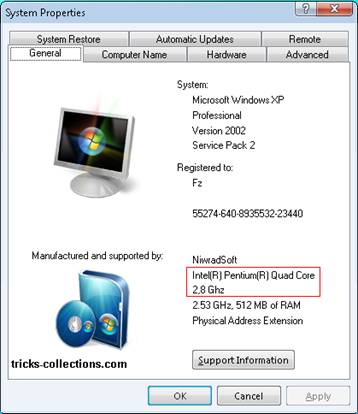
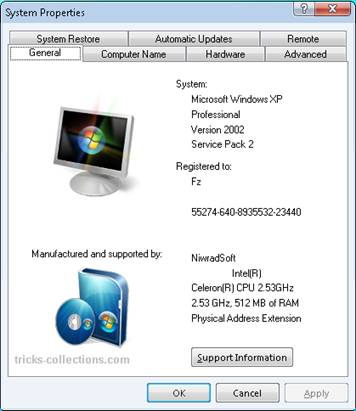
When opening system properties on Windows Xp you’d see processor name and the speed. To be your computer seen sophisticated and progressively you can alter data of processor name and speed in system properties by editing regestry key.

For example you can see below picture. I change computer data with processor celeron become Quad Core by editing registry entry.


After editing registry key:


Here how:

  • Open registry editor
  • Now goto this registry key: “HKEY_LOCAL_MACHINE | HARDWARE | DESCRIPTION | System | CentralProcessor | 0”
  • on right Panel right click registry string named “ProcessorNameString” and click Modify, then type any Processor Name e.g from “Intel(R) Celeron(R) CPU 2.53GHz” to “Intel(R) Pentium(R) Quad Core 2.8 Ghz”

Note: this values is not permanent, after computer restart the value back to the default.

Sunday, June 21, 2009

Learn to Repair & Recover Damaged/Corrupted Microsoft Outlook 2007 .Pst File


Microsoft Outlook is the popular email client widely used at work places. Many users are so much dependent on Microsoft outlook that they can’t start there work without Outlook. Microsoft Outlook stores Email Messages, Contacts, Journals, Folders, Notes and Tasks on your local hard drive as a .pst file. Anyone who uses Outlook regularly knows that these files are notoriously vulnerable to corruption.

A damaged .pst file can mean that all of your important Mi
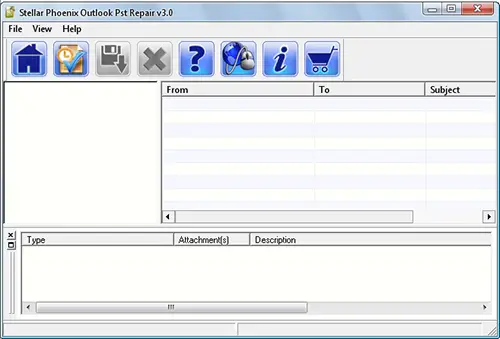
crosoft Outlook data might be going down the drain. We need some way to fix this corrupted & damaged Outlook .pst files. Here is powerful freeware software Stellar Outlook PST Repair to help us in such situation. Stellar Outlook PST Repair quickly repairs corrupted .pst files, recovers damaged .pst file & lets you restores your Emails, Contacts, Calendar items, Notes and Tasks from damaged & Corrupted Outlook PST.

Features of Stellar Outlook PST Repair
1. Recover emails, calendar entries, contacts, notes and journals from damaged PST files
2. Repair password protected files
3. Restore Text, RTF and HTML messages
4. Recover from encrypted files

5. Fix .pst files larger than 2GB
6. Recover deleted emails
7. Create unique profiles for individual PST files
8. Export recovered files automatically to Microsoft Outlook
9. Includes a Live Update option to constantly update the software with the latest version
10. Supports MS Outlook 97, 98, 2000, 2002, XP, 2003 & 2007


Screenshots of Stellar Outlook PST Repair 3.0

To
Download Stellar Outlook PST Repair 3.0

Get Thousands of Visitors for Your Website

autosurf

Get Free Dot Tk Domain

Earn Money by Just Shortening URL